AI assistance
The EDFlow staff AI features: the request queue digest, the handover attention summary and patient message drafts. What each one reads, what you must review, and how they are turned off.
- Turned off by default
Some sites turn on AI features for staff. They save typing and reading. They never change a request's priority, never take an action for you, and never send anything to a patient without your approval. Every AI output carries an "AI" label.
Request queue digest
A short summary at the top of the queue: how many requests are open by type and area, which are oldest, and which patients have more than one open. It reads only request types, ages, areas and counts from the queue you can already see.
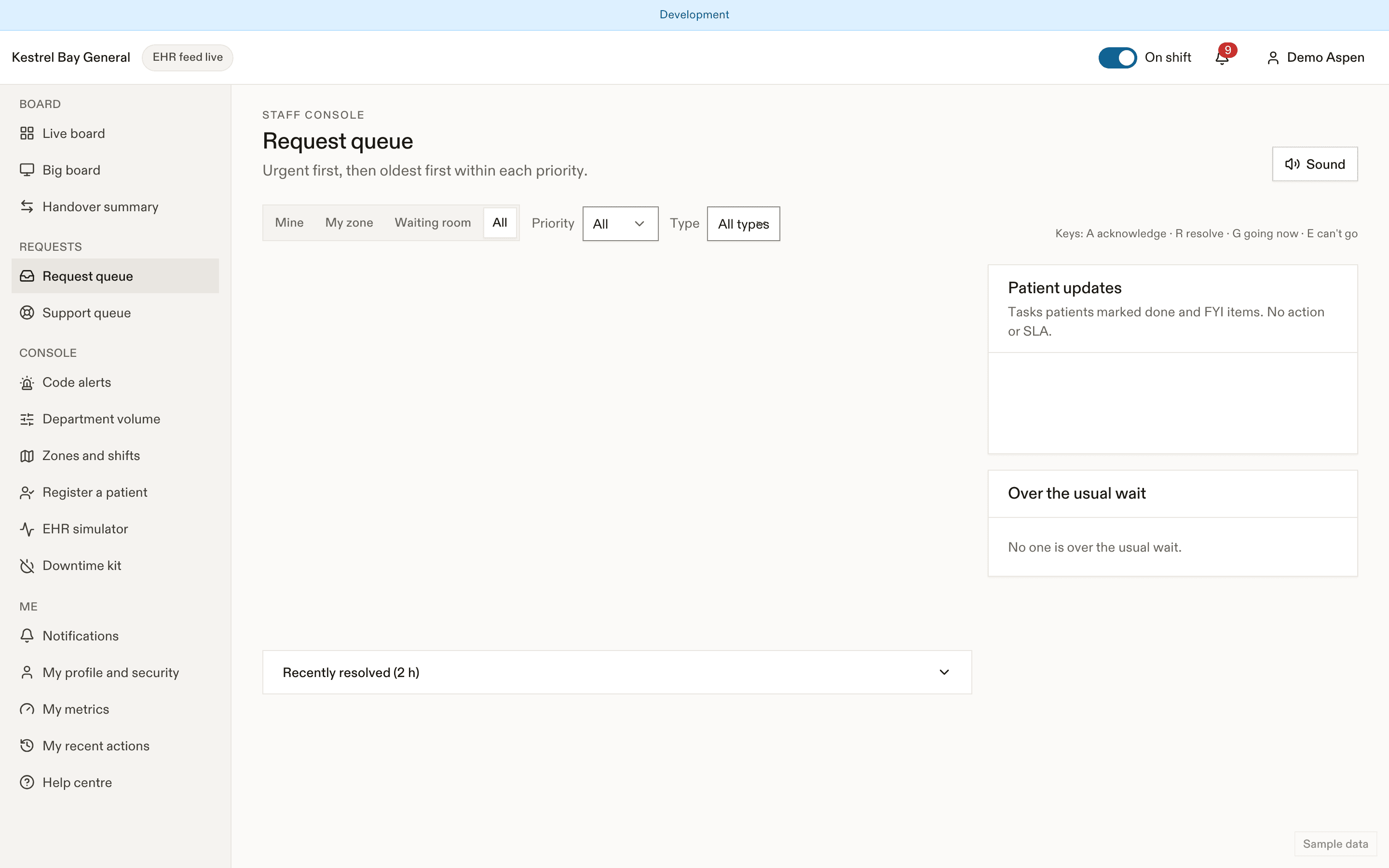
What you must do: use the queue itself to act. The digest can be wrong or out of date by a few seconds.
Handover attention summary
When a handover list is available, a short list of things to look at for each patient: open requests, pending tests, tasks waiting for confirmation, time past the usual wait. It reads the same fields as the handover list.
What you must do: check the list against the board. It never contains clinical judgement.
Patient message drafts
When you write a call-back or a message to a patient, the drafting help rewrites your text in plain language and in the patient's language. You see the draft and an independent back-translation into your language.
What you must do: read the draft and the back-translation, edit it, and send it yourself. The patient sees "Written with AI help and reviewed by your care team." Machine-translated messages carry a translation badge.
What these features never do
- Change a request's priority or routing.
- Decide who should be seen next.
- Suggest clinical actions or interpret results.
- Send anything without a staff member's tap.
Turning them off
AI features are off until a site's governance gates are met. Managers turn each feature on or off per site, and a platform-wide kill switch removes every AI entry point within seconds. When a feature is off or unavailable, the normal screen works as usual. See AI.
Related
Last updated on