Share with family
Share a live view of your emergency visit with family or friends in EDFlow: what they can and can't see, how to send the link, the device limit, and how to stop sharing at any time.
Tell a staff member now
Don't wait for a reply on your phone. Tell any nurse or staff member right away, or press your call bell. If you're in the waiting room, go to the triage desk.
If this is an emergency, call 911. For health advice, call Health811 at 811.
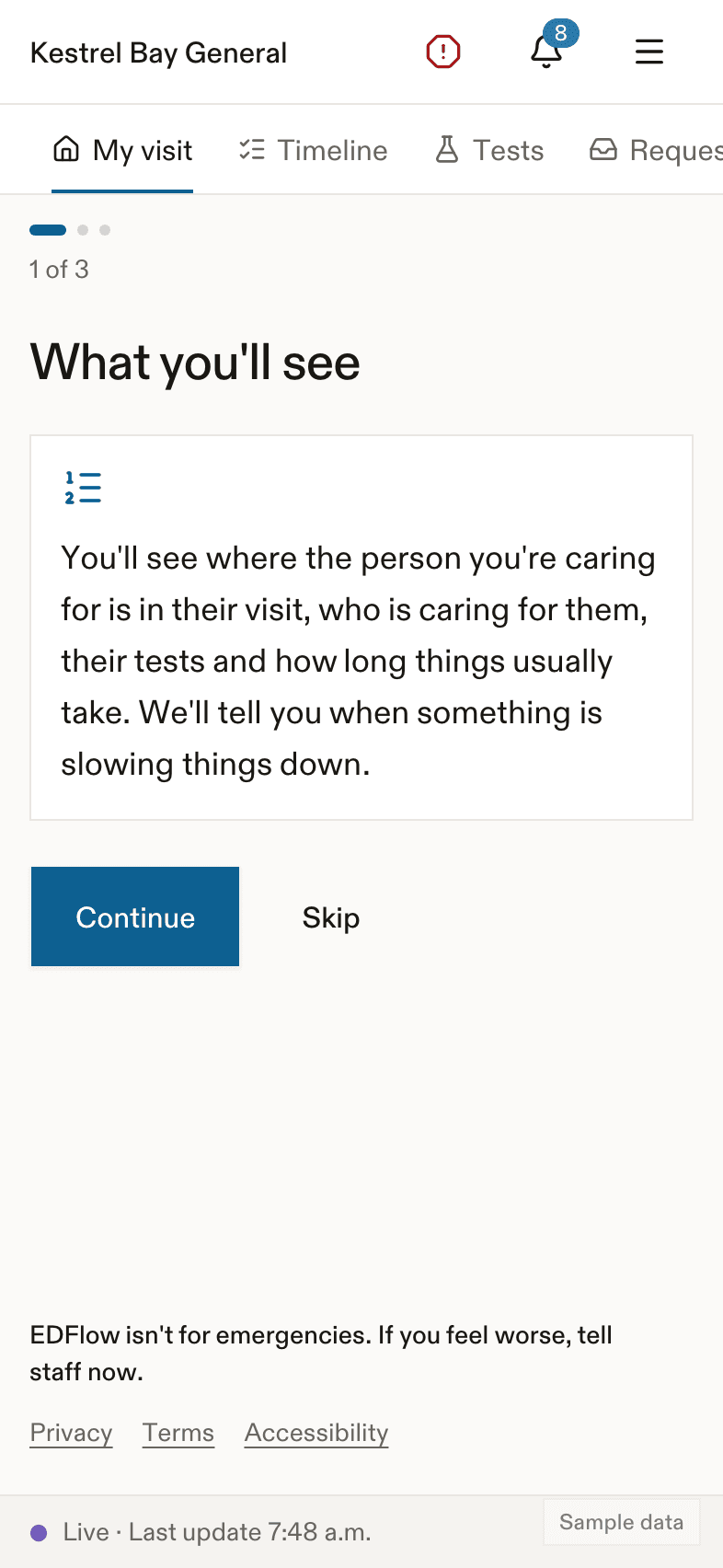
You can send family or friends a link so they can follow your visit. They see a short version. You decide who gets a link, and you can stop sharing at any time.
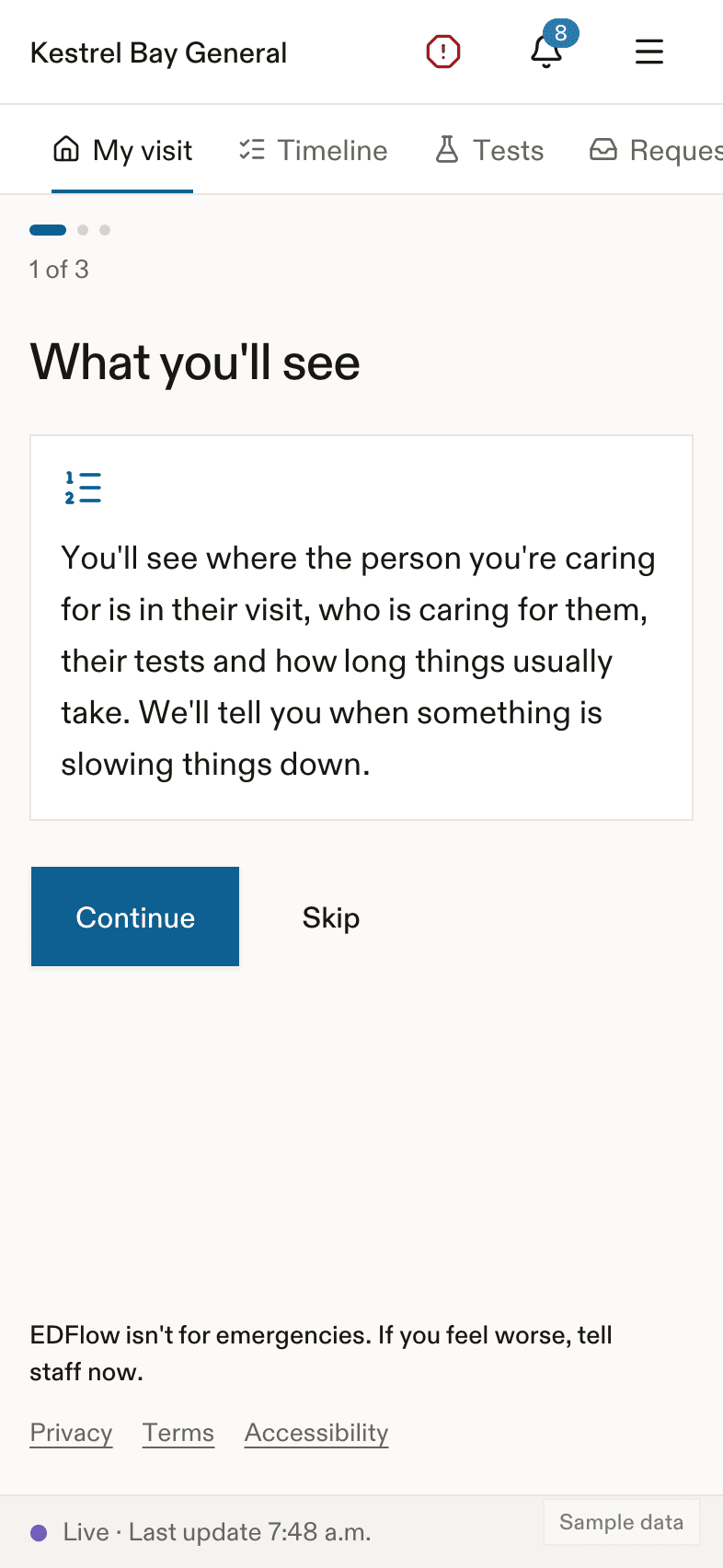
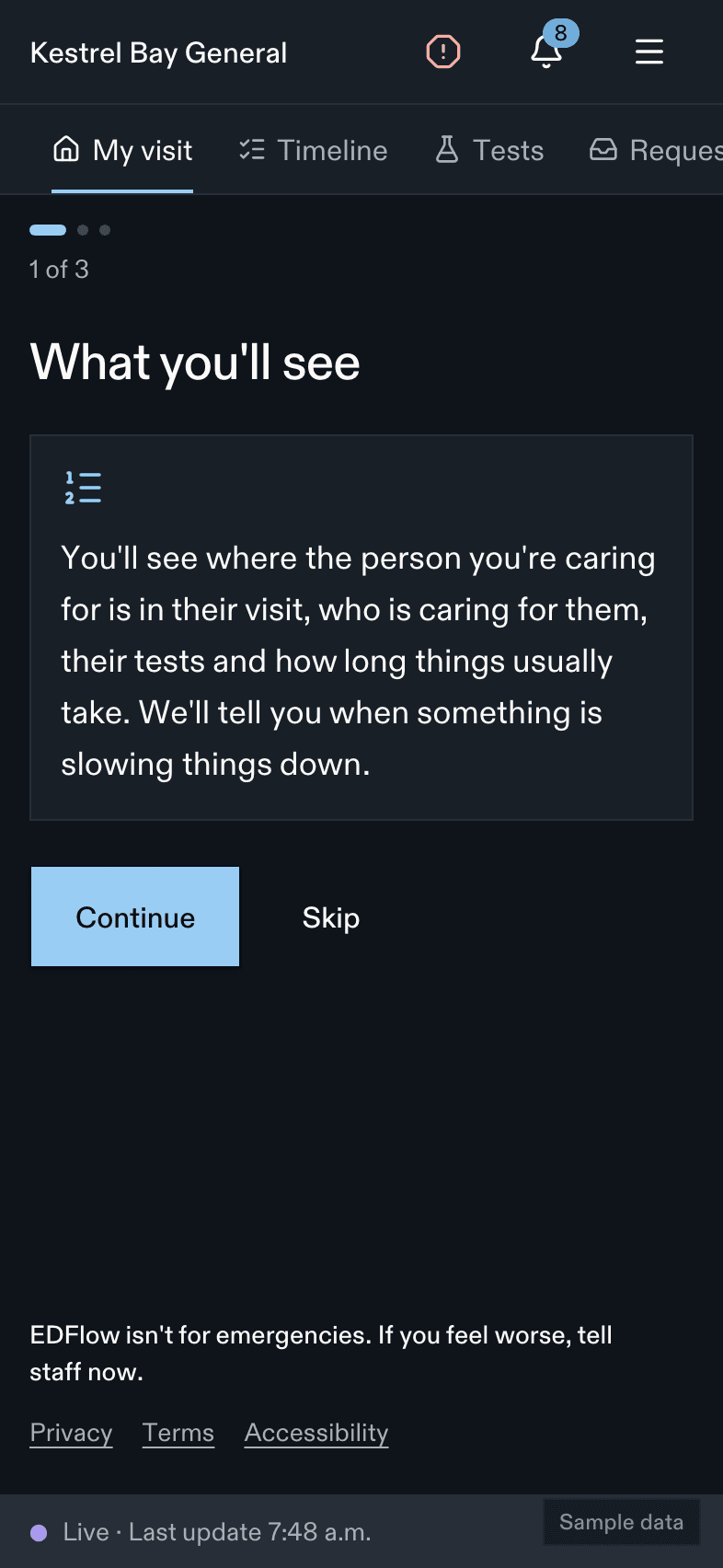
What they will and won't see
| They'll see | They won't see |
|---|---|
| Your stage | Tests |
| Rough waits, only while you wait to be seen | Results |
| Your doctor's and nurse's first names and roles | Requests |
| Hospital information | Notes |
| Where you are in the department |
If you turn it on, they can also see when you're getting ready to go home, so they can plan a ride.
Share a link
Open Share
On the Visit screen, tap Share your updates, or open Share from the menu. Then tap Share with someone.
Agree to share
Read what they will and won't see. Tick I agree to share these updates.
Choose the details
- The name they will see. It starts as your first name. You can change it.
- A private label for you, like "Mom". They don't see it.
- When sharing ends: at the end of your visit, or after 4 or 12 hours.
- The language of the text message, English or French.
Send it
Use your phone's share button, copy the link, or show a QR code for them to scan from your screen. If none of these work, we can send a text message for you. The text has no names in it.
Limits
- You can share with up to 5 people at a time. Stop sharing with someone to add another.
- Each link works on up to 3 devices. The list shows how many are used, like "2 of 3 devices".
- You can only share from the main phone, the first one that signed in with your card. Other phones see: Sharing can only be set up on the phone that first scanned your card.
See who opened it
Each link shows when it was last viewed, or Not opened yet. You can see each device that opened it and remove one.
Stop sharing
Tap Stop sharing next to the link. Their screen changes within a few seconds to say the updates have ended. You can stop sharing at any time.
If you sent a link to the wrong person, make a new link and tick Also sign out the devices that already opened it.
Why a link can stop working
A link ends when you stop sharing, when the time you chose runs out, or a short time after you leave the department (2 hours by default). Sometimes sharing isn't possible at all. Then you see: Sharing isn't available for this visit. If you have questions, ask a staff member. We don't show the reason, to protect your privacy.
Related
- What family can see, to send to the people you share with
- Privacy
- Designing family updates under PHIPA on the product site
Last updated on