Helping patients sign in
Help a patient sign in to EDFlow on their own phone: staff-assisted pairing and the five most common sign-in problems, without ever handling their card code.
Patients sign in on their own phone. You can help, but never sign in for them or read their code aloud.
Staff-assisted sign-in
- Ask the patient to open the link on their card, or the app, and choose Get help signing in. Their phone shows a 6-character code and a QR, valid for a few minutes.
- Open the patient from the board.
- Approve pairing code: type or scan the code, choose a text size (for example 200% for someone who needs larger text), and Approve.
- The patient's phone signs in and asks "Is this you?".
Screenshot pending: staff-assisted-qrThis screenshot is captured automatically from the running app with sample data.
The five most common problems
| Problem | What to do |
|---|---|
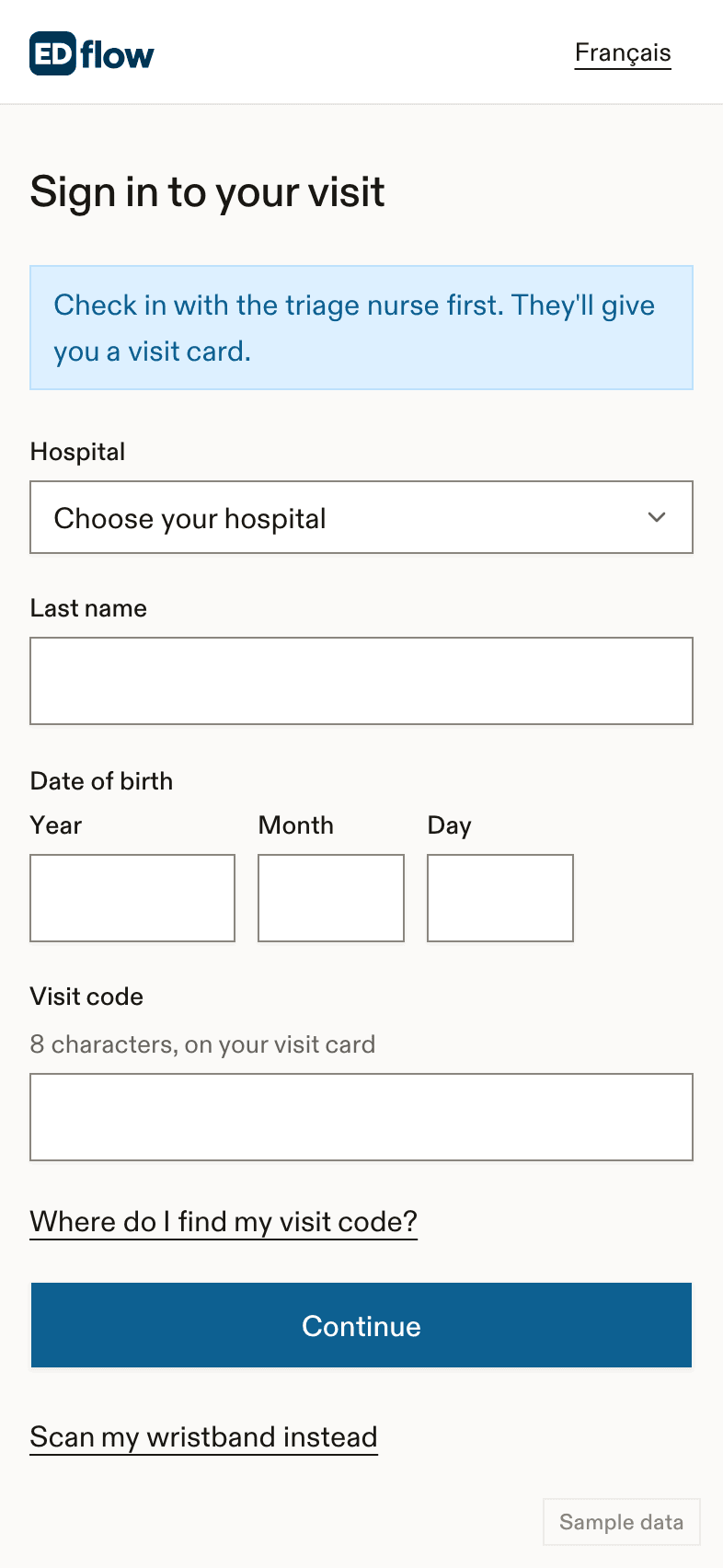
| The camera doesn't open the link | Use Enter my details: last name, date of birth and the visit code under the QR. Or use pairing. |
| "We couldn't find a visit with those details" | Check the spelling of the last name and the date format (year, month, day). The code can be typed without the dash. |
| "Too many tries. Please wait 15 minutes" | Use pairing, which isn't affected. |
| "This code doesn't work anymore" | The card was reissued or revoked. Reissue and give the new card. |
| "This visit is already open on the most devices allowed" | On their main phone, open Devices on my visit and sign out an old device. Or sign one out from the patient's page. |
A second phone
If the patient already signed in on one phone and now uses another, the second phone asks for the date of birth, or approval from the first phone. That's expected.
Related
- Sign in, the patient's guide
- Troubleshooting
Last updated on