Sign in
How to sign in with my card: scan the QR code on your wristband or visit card, or enter your last name, date of birth and visit code, then confirm it's you. What to do if you're locked out.
Tell a staff member now
Don't wait for a reply on your phone. Tell any nurse or staff member right away, or press your call bell. If you're in the waiting room, go to the triage desk.
If this is an emergency, call 911. For health advice, call Health811 at 811.
You sign in with the card or wristband label staff gave you after triage. There are three ways to sign in. They all lead to the same place.
Before you start
- You need the visit card or the wristband label with the QR code on it.
- Check in with the triage nurse first. EDFlow only works once you are registered.
- Any phone with a camera and a web browser works. You don't need the app.
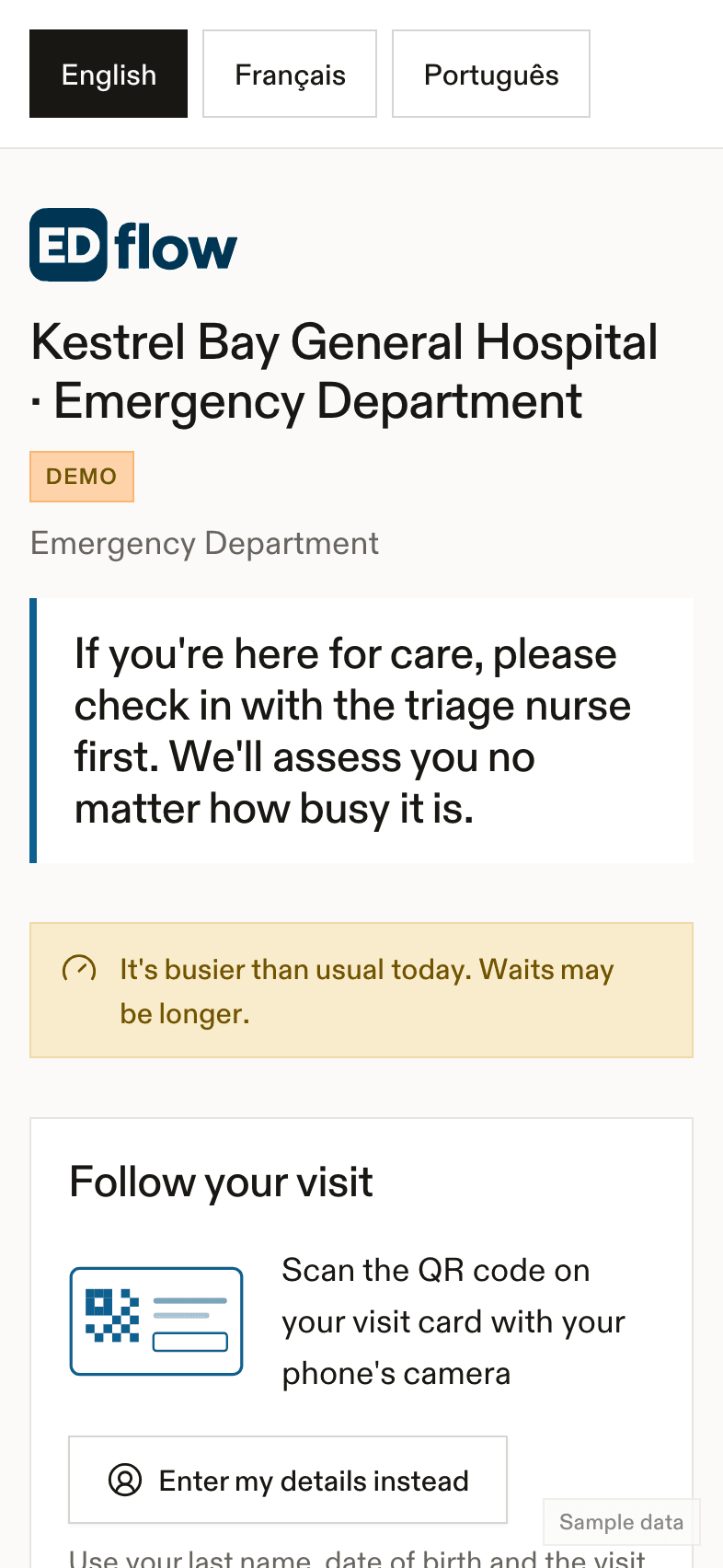
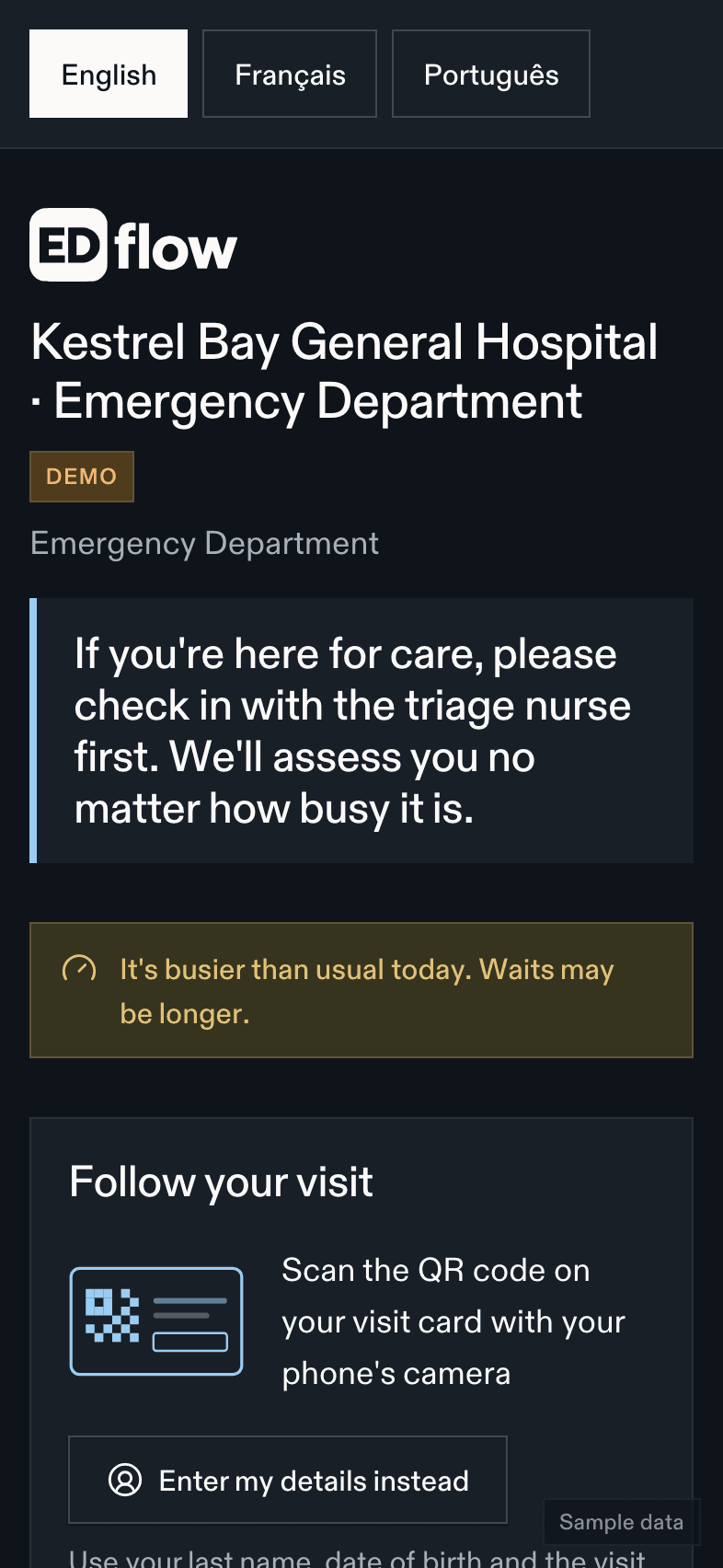
- Check in first
- Department status
- Hospital announcements
- Follow your visit
Sign in with your card
Scan the QR code
Open your phone's camera and point it at the QR code on your card. Tap the link that appears.
Check it's you
The screen asks Is this you? It shows your first name, the first letter of your last name, and when you checked in. Tap Yes, that's me if it's you.
Read the three welcome screens
They explain what you'll see, what you won't see, and what to do if you feel worse. You must read the last one.
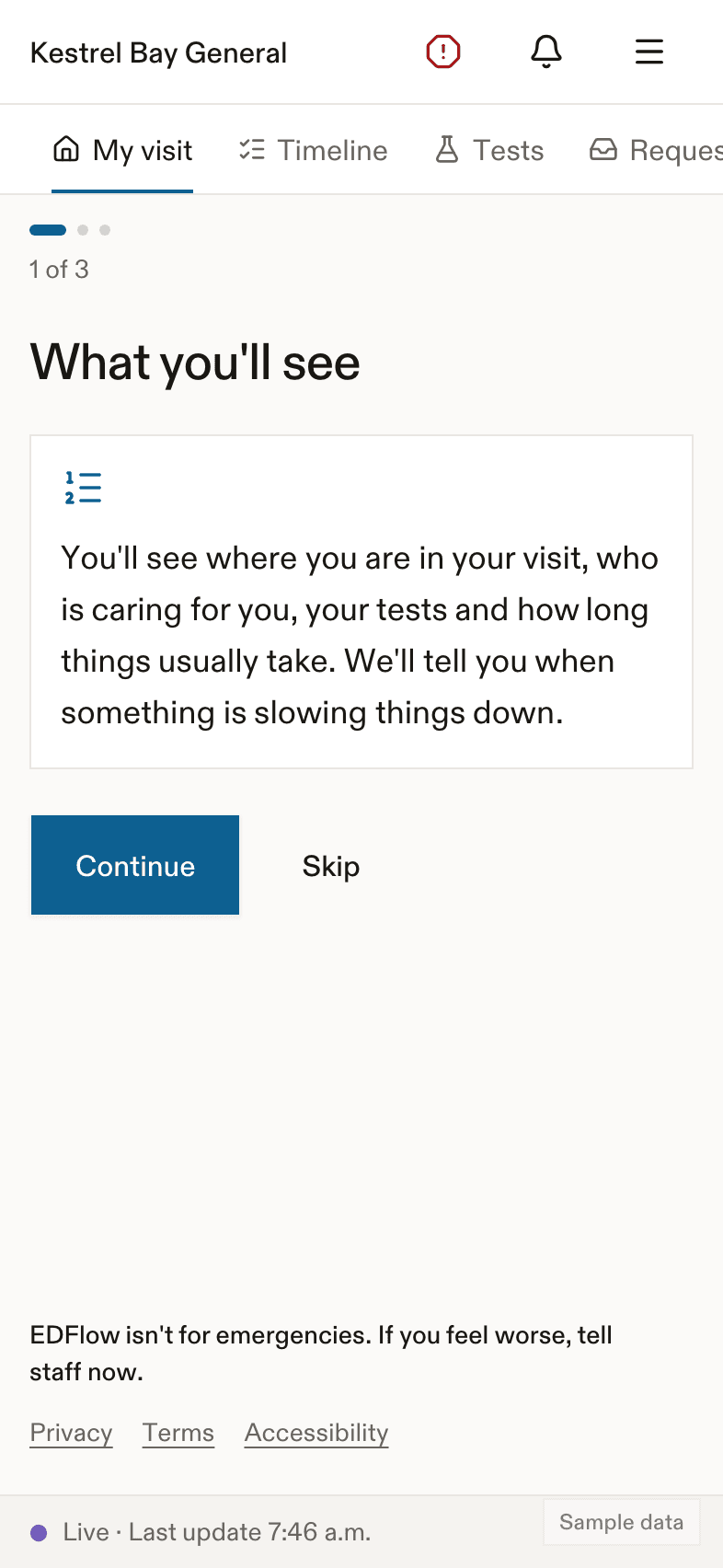
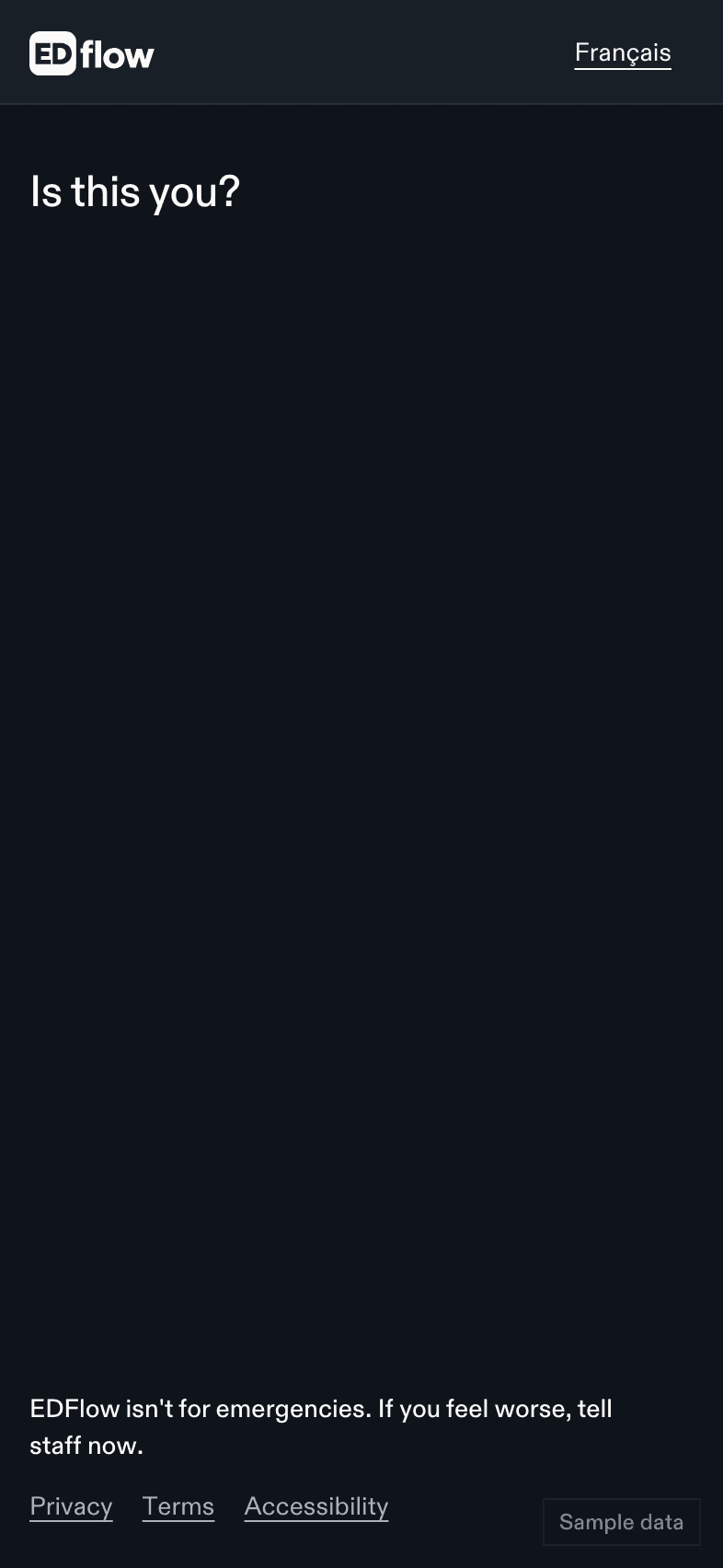
If the name is not yours, tap No, that's not me. We sign you out and let the staff know. Please ask a staff member for help.
Sign in with your details
Use this if you can't scan the code.
- Choose Enter my details.
- Type your last name.
- Type your date of birth: year, month and day in three boxes.
- Type your visit code. It is printed on your card, under the QR code. It looks like
XXXX-XXXX. You can type it with or without the dash. - Tap Continue, then confirm it's you.
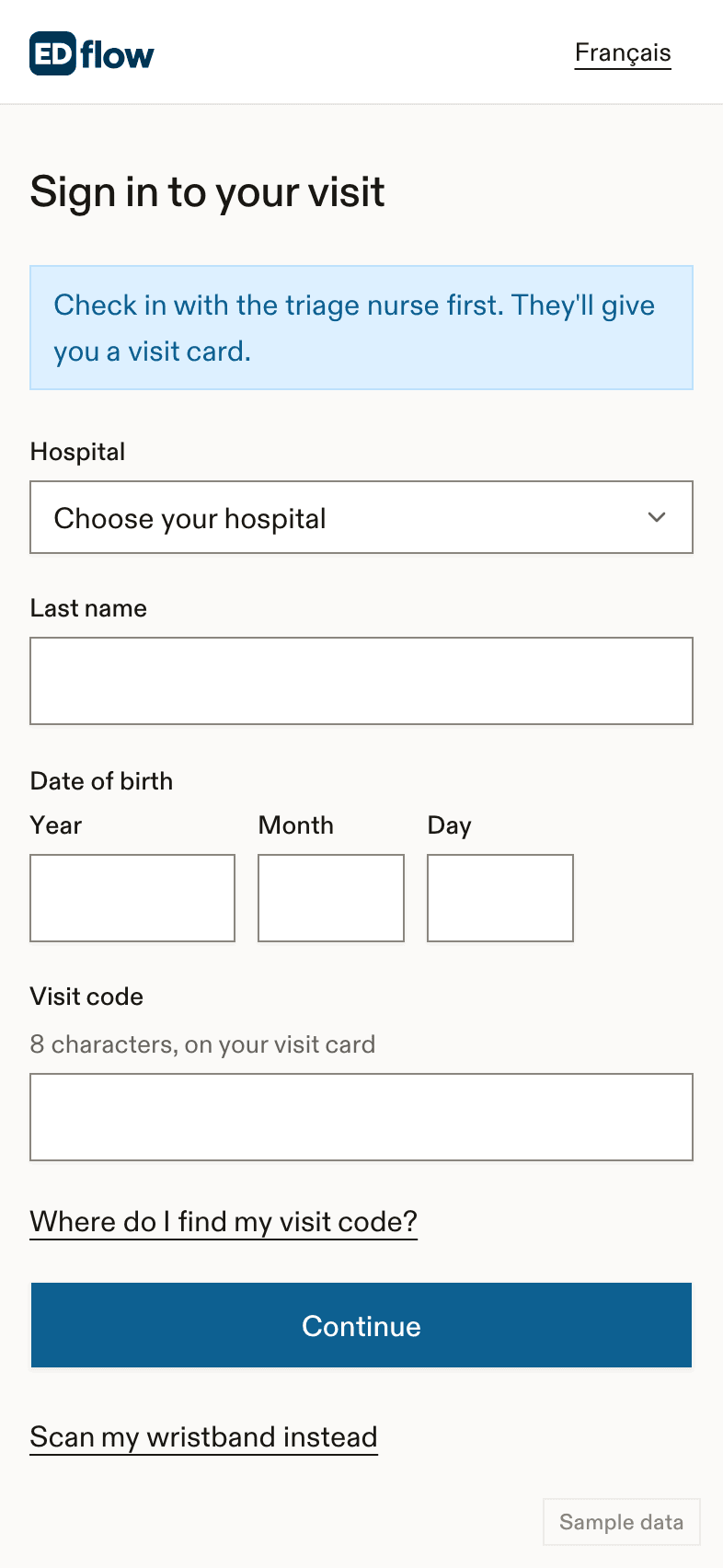
Some hospitals only use a visit code. In that case, you type the code, then the first name you'd like us to use.
Sign in with help from staff
If you'd like help, ask a nurse or the registration desk. On your phone, choose Get help signing in. Your phone shows a short code. Show it to the staff member. When they approve it, your phone signs in. Staff never need to hold your phone or your card.
Using a second phone
The first phone that signs in with your card becomes the main phone for your visit. If you sign in on another phone, we ask for your date of birth first, or you can ask the main phone to approve it. If your card is a wristband label, we always ask for your date of birth.
If something goes wrong
| What you see | What to do |
|---|---|
| We couldn't find a visit with those details. Check them and try again, or ask a staff member. | Check the spelling and the date. After a few tries you will need to wait. |
| Too many tries. Please wait 15 minutes, or ask a staff member. | Wait 15 minutes, or ask a staff member to help you. |
| This code doesn't work anymore. Ask a nurse or the registration desk for a new card. | Your card no longer works. Ask for a new card. |
| Your visit isn't ready for EDFlow yet. Staff will give you a card when it is. | Staff are still setting up your visit. They will give you a card. |
| This visit is already open on the most devices allowed. Sign out on another device, or ask a staff member. | Sign out on a phone you no longer use, or ask a staff member. |
More help is on Troubleshooting.
Related
- App or browser
- Your visit
- Settings, to see the phones signed in to your visit
Last updated on