Open your link
How to open the visit updates link someone shared with you in EDFlow: tap View updates, choose your language, the 3-device limit, and using the app instead of the browser.
Tell a staff member now
Don't wait for a reply on your phone. Tell any nurse or staff member right away, or press your call bell. If you're in the waiting room, go to the triage desk.
If this is an emergency, call 911. For health advice, call Health811 at 811.
You got a link by text, email or a QR code. It lets you follow a short version of someone's visit.
Open the link
Tap the link
It opens in your phone's browser. You don't need to install anything.
Read who shared it
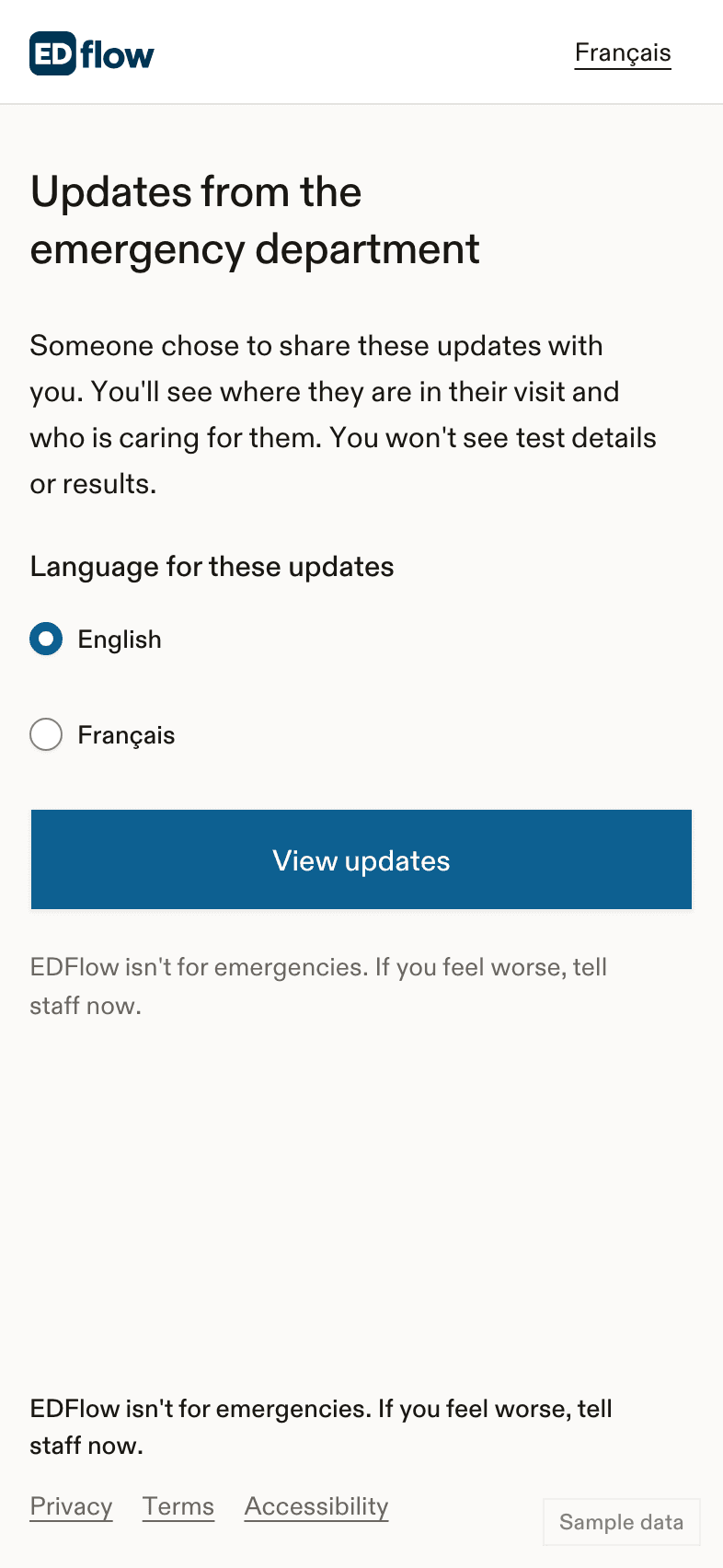
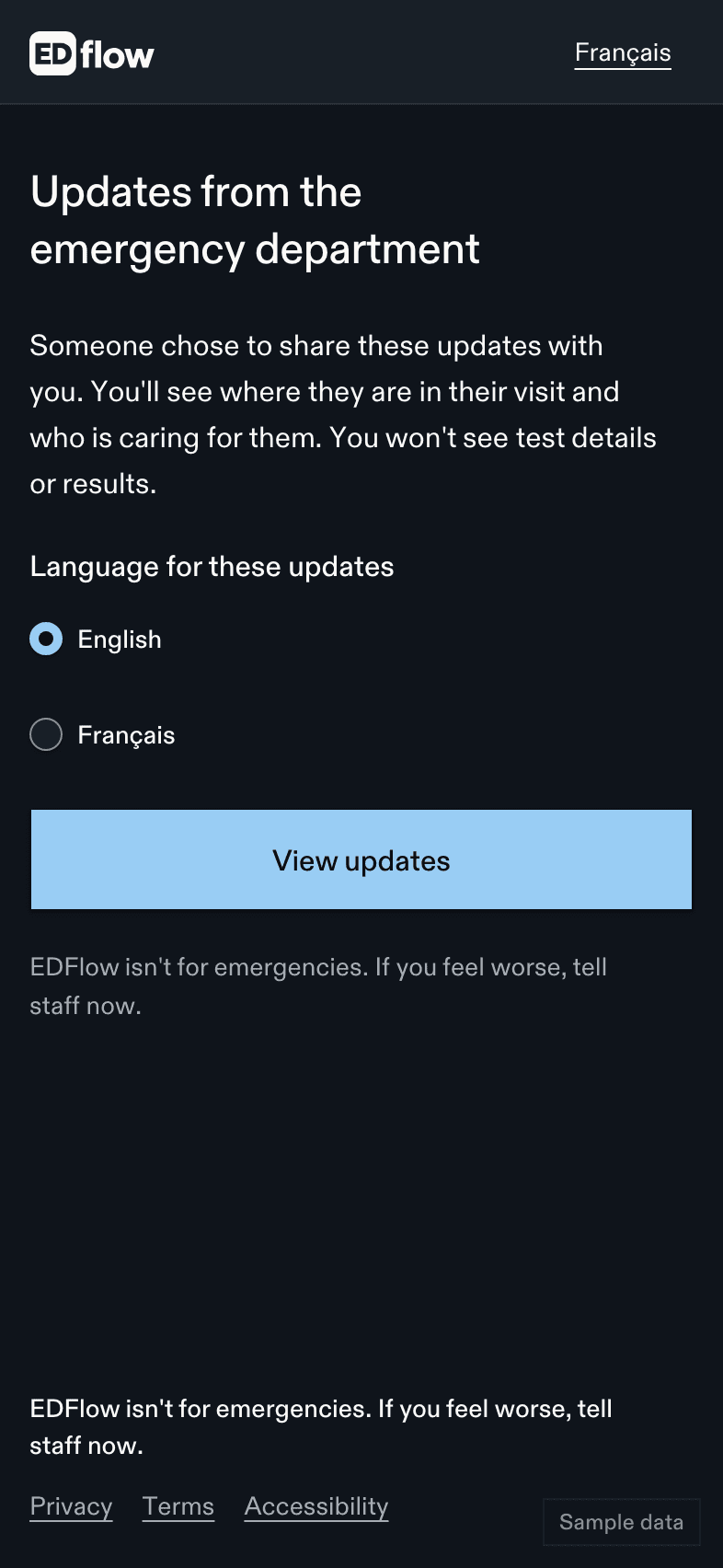
{displayName} chose to share these updates with you. You'll see where they are in their visit and who is caring for them. You won't see test details or results.Choose your language
English, French, or another language the hospital offers. You can choose a different language from the person who shared.
Tap View updates
Only this tap opens the updates, so link previews in messaging apps don't use up a device.
The device limit
Each link works on up to 3 phones or computers. If you see this, ask for a new link:
This link has already been opened on the most devices it allows. Ask {displayName} to send you a new link.
Please don't forward the link. Ask the person who shared it to send one to each person instead.
Using the app
If you have the EDFlow app, the link opens in it. In the app you can get notifications for the big steps. The app shows nothing else in family mode.
If the link doesn't work
You see: These updates have ended. The link may have ended or been stopped. We don't show why, for privacy. See When updates end.
Related
Last updated on